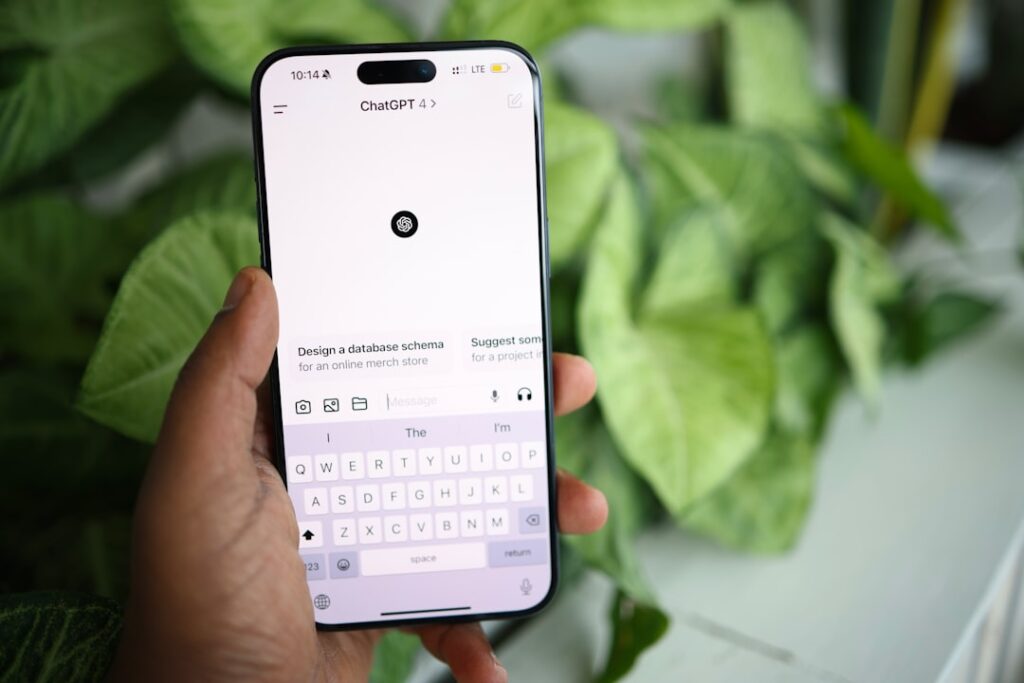
Pandora: The Easiest Way to Use ChatGPT for Free Without a VPN
Pandora offers a convenient and powerful way to access ChatGPT for free, eliminating the need for a VPN. This tutorial guides professionals, developers, and tech enthusiasts through the registration process and explains how to leverage Pandora’s features for a seamless ChatGPT experience.
Understanding Pandora’s Core Functionality
Pandora essentially mirrors all the functionalities of the official ChatGPT website while incorporating unique features not available on the official platform. This versatility, however, can be initially overwhelming. This guide breaks down the process to get you started with Pandora and achieve ChatGPT access.
Basic Usage: Shared ChatGPT Accounts
For occasional users, Pandora provides a free shared pool of over 2000 ChatGPT accounts, generously contributed by other users. These accounts are color-coded for easy identification:
- Green: Idle accounts
- Red: Busy accounts
- Gold: Plus accounts (often restricted due to high usage)
Users can select a green account and set a password (minimum 8 characters, alphanumeric) to isolate their sessions, preventing others from viewing their chat history. This method, while straightforward, is limited to one message every 10 seconds due to the shared nature of the accounts.
Advanced Usage: Account Registration and Token Login
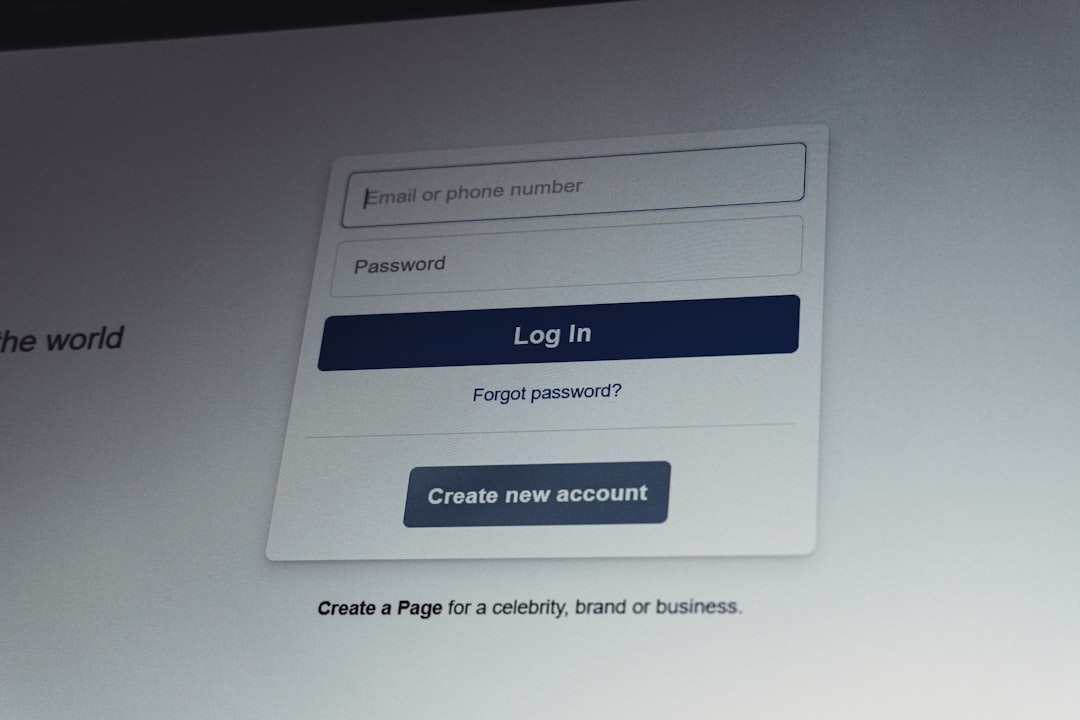
For unrestricted use, users can register their own Pandora account without a VPN:
- Navigate to the official Pandora project demo site and click “Sign Up.”
- Enter an email address and password.
- Verify the email address by copying the verification link and pasting it into the provided field.
- Set a nickname and proceed to the registration completion screen.
Pandora supports login via username/password or various tokens (access, share, refresh, and session). Token login is a secure alternative to password-based login.
Acquiring Access and Session Tokens
Tokens act as alternative passwords. Obtaining these tokens requires either using Pandora’s services or the official OpenAI interface. While using Pandora requires entering your credentials on a third-party platform, using the official OpenAI interface requires a VPN.
Method 1: Using Pandora’s Token Acquisition Service:
- Click the provided link to access Pandora’s token acquisition service.
- Enter your ChatGPT credentials (email and password).
- Copy and save the displayed access token and session token.
Method 2: Using OpenAI’s Official Interface (VPN Required):
- Log in to the OpenAI website.
- Navigate to the access token link.
- Copy and save the access token.
- Open the browser’s developer tools (usually by pressing F12).
- Go to the “Application” tab and find the website’s cookies.
- Locate and copy the session token.
Access tokens are valid for 10 days, while session tokens are valid for 3 months. Using session tokens is generally recommended due to their longer validity.
API Access via Proxy Mode
To leverage Pandora’s API for third-party tools or custom applications, you need a VPS (Virtual Private Server) and a GitHub account that’s at least six months old.
Steps to Enable Proxy Mode:
- Authorize Pandora using your GitHub account to obtain a license ID.
- Download the appropriate Pandora version for your VPS operating system.
- Extract the downloaded archive and navigate to the extracted directory.
- Modify the
configfile:- Change
127.0.0.1to0.0.0.0or remove it to listen on all network interfaces. - Enter your license ID.
- Set a strong
site passwordto protect the web interface. - Define a secure
proxy_api_prefix. This is essential for enabling proxy mode and will serve as part of your API endpoint.
- Change
- Run Pandora.

Successful execution will display service information, including the authorized IP address, usage quota, bound port, and running modes. Access the web interface using your VPS IP address and the configured port, entering the site password when prompted.
Securing the API with TLS and Automated Token Renewal
To secure API access and simplify token management, this tutorial outlines the use of Cloudflare for TLS encryption and a Python script for automatic token renewal.
Securing the API with TLS
- Add a DNS Record in Cloudflare pointing to your VPS.
- Create a Rule in Cloudflare redirecting traffic to your desired port.
Automated Token Renewal Script:
The Python script automates the process of generating and renewing access tokens, share tokens, and pool tokens.
- Download the Python script.
- Edit the script, configuring the API endpoint and replacing the placeholder API prefix with your configured
proxy_api_prefix. - Create a
users.txtfile containing your ChatGPT credentials (email and password) separated by “—-” on each line. - Run the script with the
-aparameter and theusers.txtfile path to automatically extract session tokens. Be aware that each session token extracted using username/password consumes 100 credits on the Pandora license. - Alternatively, manually create a
session_token.txtfile containing your session tokens, one per line, and run the script without the-aparameter. - The script will generate share tokens and a pool token, saving them to the
token.txtfile.
By implementing these steps, users can effectively utilize Pandora to bypass geographical restrictions and limitations, enjoying a more streamlined and efficient ChatGPT experience.